





Education

FAQ: Trading Platforms

POEMS

How do I execute a CFD order on POEMS?

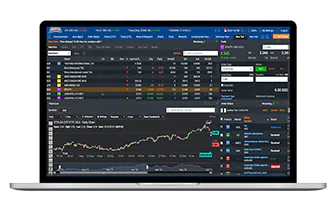
Log in to www.poems.com.sg>CFD>Trading or DMA Trading, select the counter or index you would like to trade, select “Buy” or “Sell”, enter the price and quantity desired and click “Submit”.
1 Star2 Stars3 Stars4 Stars5 Stars Loading ... Loading ...

How do I access information on the trades I have submitted today on POEMS?

You can access the information on the trades you have executed on the same trading day by going to www.poems.com.sg>CFD>Trading or DMA Trading. Access this information on the Order Status module (bottom right of screen) by going to “All Orders”, “Working Orders”, “Orders Processed”, “Trades Done”, “All Orders (Yest)”, “Synthetic Orders”. All your Shares CFD and DMA orders will be shown together. All Orders – This module will show all the orders you have submitted for the same trading day. Working Orders – This module will show all the orders that have been submitted for the same trading day, which has not been processed. Orders Processed – This module will show all the orders that have been processed for the same trading day. Examples of processed orders would include done orders, rejected orders and withdrawn orders. Trades Done - This module will show all the orders done for that trading day. All Orders (Yest) - This module will show all the orders that were submitted for the previous trading day. Synthetic Orders – This module will show all the synthetic orders that were submitted through CFDTrader for that trading day.
1 Star2 Stars3 Stars4 Stars5 Stars Loading ... Loading ...

How do I withdraw an order in the queue on POEMS?

At the bottom right corner of the trading page you will find your Order Status module. Click on “Working Orders” to see the working orders for that trading day. Check on the orders you would like to withdraw and select “Withdraw Selected Order(s)”.
1 Star2 Stars3 Stars4 Stars5 Stars Loading ... Loading ...

How do I see done orders for the day on POEMS?

You can access the information on the trades you have executed on the same trading day by going to www.poems.com.sg>CFD>Trading or DMA Trading. Access this information on the Order Status module (bottom right of screen) by going to “Orders Processed” or "Trades Done" to see done order for the day on POEMS.
1 Star2 Stars3 Stars4 Stars5 Stars Loading ... Loading ...

What types of orders will be shown under Orders Processed on POEMS?

Under “Orders Processed”, you can see orders that have been done, withdrawn or rejected.
1 Star2 Stars3 Stars4 Stars5 Stars Loading ... Loading ...

What order types are available on POEMS?

Customer can access to LIMIT orders for Singapore, Malaysia and Hong Kong Shares CFDs, and LIMIT and MARKET orders for US Shares CFDs. For World Indices CFDs, customers can access to LIMIT orders on POEMS.
1 Star2 Stars3 Stars4 Stars5 Stars Loading ... Loading ...

What is a limit order?

A limit order is an order to buy or sell at a specific price upon submission (or better). The order entered must be at prevailing market prices, or better as compared to the current market’s quotes, otherwise the order will be rejected.
1 Star2 Stars3 Stars4 Stars5 Stars Loading ... Loading ...

What is a market order?

A market order is an order to buy or sell a stock at the current market price.
1 Star2 Stars3 Stars4 Stars5 Stars Loading ... Loading ...

What could be some of the reasons my order is rejected?

Your CFD order could be rejected due to reasons such as “Insufficient balance to trade”, “Buy temporary suspended”, “Client Limit exceeded” or “Company Limit exceeded”. To find out more about why your trade was rejected, please contact your Trading Representative or the CFD Dealing Team.
1 Star2 Stars3 Stars4 Stars5 Stars Loading ... Loading ...

How do I know of your important announcements that are important for my trading?

All important announcements for CFD customers are updated on the CFD attention page, and we recommend our customers to view this page before trading. Log in to www.poems.com.sg> CFD>ATTENTION to view these announcements.
1 Star2 Stars3 Stars4 Stars5 Stars Loading ... Loading ...

How do I create a watchlist on POEMS?

Log in to www.poems.com.sg>CFD>Trading or DMA Trading>Edit Watchlist to create or update your watchlists. You can place Equities CFDs of the same market on 1 watchlist, and World Indices CFDs on a separate watchlist.
1 Star2 Stars3 Stars4 Stars5 Stars Loading ... Loading ...

How many watchlists can I create on POEMS?

You can create a maximum of 5 watchlists per market.
1 Star2 Stars3 Stars4 Stars5 Stars Loading ... Loading ...

What is the maximum number of counters I can add to each watchlist on POEMS?

You can add a maximum of 40 counters to each watchlist.
1 Star2 Stars3 Stars4 Stars5 Stars Loading ... Loading ...

Can I add different markets and products to the same watchlist on POEMS?

No, watchlists are organized by markets, so you can only add Equities CFDs of the same market to 1 watchlist, and place World Indices CFDs on a separate watchlist.
1 Star2 Stars3 Stars4 Stars5 Stars Loading ... Loading ...

When do orders expire on POEMS?

All orders submitted on POEMS are day orders, and will expire at the end of the trading day.
1 Star2 Stars3 Stars4 Stars5 Stars Loading ... Loading ...

Can I use POEMS on Windows 8, Internet Explorer 10?

Yes. You will need to first download and run the Windows 8 and Windows Server 2012 cumulative update: November 2012. Then open IE 10 in Desktop Mode, go to Tools menu > Compatibility View Settings. On the Compatibility Settings Panel, add “poems.com.sg”, check the “Display all websites in compatibility view”, click Close. You can then visit www.poems.com.sg to start trading.
1 Star2 Stars3 Stars4 Stars5 Stars Loading ... Loading ...

I’m using Windows 8, Internet Explorer 10, why are prices charts not displaying on POEMS?

Currently, POEMS can only run on Windows 8, IE 10 while on Desktop Mode. Metroview mode doesn’t allow Java plugin and will have problems with Price View and Charts. To use POEMS, you will need to first download and run the Windows 8 and Windows Server 2012 cumulative update: November 2012. Then open IE 10 in Desktop Mode, go to Tools menu > Compatibility View Settings. On the Compatibility Settings Panel, add “poems.com.sg”, check the “Display all websites in compatibility view”, click Close. You can then visit www.poems.com.sg to start trading.
1 Star2 Stars3 Stars4 Stars5 Stars Loading ... Loading ...

POEMS (iPhone)

What is POEMS (iPhone)?

POEMS (iPhone) allows you to access and manage your CFD account conveniently anytime, anywhere on your iPhone. All you need to do is download the iPhone App from the App Store.
1 Star2 Stars3 Stars4 Stars5 Stars Loading ... Loading ...

Is POEMS (iPhone) App free?

Yes, POEMS (iPhone) App is available free on the App Store. However, you have to be an existing POEMS CFD customer in order to use the App.
1 Star2 Stars3 Stars4 Stars5 Stars Loading ... Loading ...

How do I access my account on POEMS (iPhone)?

After installing the POEMS (iPhone) App from the App Store, you can access the POEMS Mobile platform by tapping on the POEMS (iPhone) icon on your iPhone to enter the login screen. To login to your account, you would need to key in their POEMS account number under User ID and Password before tapping on the Sign In button. Tap on CFD or CFD DMA tab to access the CFD trading home screen.
1 Star2 Stars3 Stars4 Stars5 Stars Loading ... Loading ...

How do I search for counters?

To enter the Search screen, you would need to first tap on the Trade button at the bottom of the home page. You can then key in the contract name or symbol in the Search Input box at the top of the screen and a list of related results will be listed on the Result list below.
1 Star2 Stars3 Stars4 Stars5 Stars Loading ... Loading ...

Are the prices quoted on POEMS (iPhone) live?

Yes, prices quoted are live unless otherwise indicated with the * symbol.
1 Star2 Stars3 Stars4 Stars5 Stars Loading ... Loading ...

How do I place trade for each counter?

After selecting the counter you want to trade, you would be directed to the Trade screen. From the Trade screen, you would be able to select the Order Type and Quantity before selecting Buy or Sell to reach the Order Confirmation screen. After verifying your order, key in your password to submit your order.
1 Star2 Stars3 Stars4 Stars5 Stars Loading ... Loading ...

How do I know the status of my order?

From the Home screen, you can tap on the Order Status button at the bottom of the screen to view your orders. From the Order Status screen, you can check Today’s Orders or Past Orders of up to 7 days.
1 Star2 Stars3 Stars4 Stars5 Stars Loading ... Loading ...

How can I withdraw my order?

You can withdraw orders by tapping on the order you want to withdraw from the Order Status screen. Select the Withdraw button at the bottom to withdraw and you will be prompted to key in your password to confirm the withdrawal of the order.
1 Star2 Stars3 Stars4 Stars5 Stars Loading ... Loading ...

How do I create a Watch List?

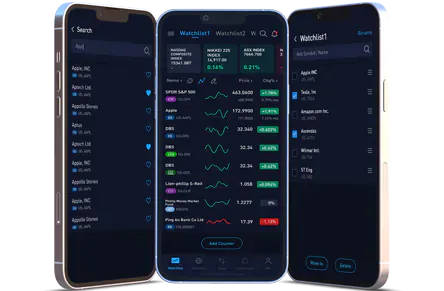
From the Home screen, select Watch List to view all watch lists. To edit watch list, tap on the Edit button at the top of the watch list to rename watch list, search, and add and delete counters on the list. Select Done to return back to your watch list.
1 Star2 Stars3 Stars4 Stars5 Stars Loading ... Loading ...

How many different watch lists can I create?

You can create up to 5 different watch lists with each watch list containing up to 20 different counters. Each watch list can contain counters across different markets.
1 Star2 Stars3 Stars4 Stars5 Stars Loading ... Loading ...

Can I view my Portfolio on POEMS (iPhone)?

You can view your current portfolio by tapping on Portfolio at the bottom of the Home screen. The top panel will display your Available Cash and your Equity Balance in SGD. All your Open Positions would be displayed at the centre of the screen. Your Total Unrealized P/L would be displayed at the bottom of the screen.
1 Star2 Stars3 Stars4 Stars5 Stars Loading ... Loading ...

Can I trade DMA CFD on POEMS (iPhone)?

Yes you can. At the Home screen, select the DMA CFD tab to place DMA CFD orders. Please note that a DMA CFD open position cannot be closed with a CFD order and vice-versa.
1 Star2 Stars3 Stars4 Stars5 Stars Loading ... Loading ...

Can I trade all CFD contracts on POEMS (iPhone) that are available on POEMS?

POEMS (iPhone) offers the same range of CFD contracts that is found on POEMS except for AMEX market.
1 Star2 Stars3 Stars4 Stars5 Stars Loading ... Loading ...

Can I place Advanced Orders on POEMS (iPhone)?

Currently POEMS (iPhone) support limit and stop limit orders for Shares CFD and limit order only for DMA. A stop limit order is a combination of two orders, stop and limit order. Once the stop price is triggered, the stop limit order becomes a limit order. Stop limit order allows clients to place orders at worst off price (usually used to cut loss or as a breakout confirmation).
1 Star2 Stars3 Stars4 Stars5 Stars Loading ... Loading ...

When do CFD orders expire on POEMS (iPhone)?

Like on all other platform, CFD orders expires after market closes.
1 Star2 Stars3 Stars4 Stars5 Stars Loading ... Loading ...

Can I view the orders submitted on POEMS (iPhone) on POEMS?

Yes, orders submitted on POEMS (iPhone) can be viewed on POEMS and all other CFD platform. However, AMEX orders submitted through other CFD platforms cannot be viewed and accessed via POEMS (iPhone).
1 Star2 Stars3 Stars4 Stars5 Stars Loading ... Loading ...

POEMS (iPad)

What is POEMS (iPad)?

POEMS (iPad) allows you to access and manage your CFD account conveniently anytime, anywhere on your iPad. All you need to do is download the iPad App from the App Store.
1 Star2 Stars3 Stars4 Stars5 Stars Loading ... Loading ...

Is POEMS (iPad) App free?

Yes, POEMS (iPad) App is available free on the App Store. However, you have to be an existing Phillip CFD customer in order to use the App.
1 Star2 Stars3 Stars4 Stars5 Stars Loading ... Loading ...

How do I access my account on POEMS (iPad)?

After installing the POEMS (iPad) App from the App Store, you can access the POEMS (iPad) platform by tapping on the POEMS (iPad) icon on your iPad to enter the login screen. To login to your account, you would need to key in your POEMS account number under User ID and Password before tapping on the Sign In button. Tap on CFD & DMA tab to access the CFD trading home screen. Tap on Shares CFD or DMA CFD Toggle button found at the top to select your preferred trading mode.
1 Star2 Stars3 Stars4 Stars5 Stars Loading ... Loading ...

How do I search for contracts?

To enter the Search screen, you can either tap on the magnifying glass icon at the top-right corner of the screen or tap on the Trade button at the bottom menu bar. On the search screen, you can then key in the contract name or symbol in the Search Input box at the top of the screen and a list of related results will be listed on the Result list below.
1 Star2 Stars3 Stars4 Stars5 Stars Loading ... Loading ...

Are the prices quoted on POEMS (iPad) live?

Yes, prices quoted are live unless otherwise indicated with the * symbol.
1 Star2 Stars3 Stars4 Stars5 Stars Loading ... Loading ...

How do I place trade for each contract?

After selecting the contract you want to trade, the bottom panel would show the Trade Panel. From the Trade Panel, you would be able to select the Order Type, Price and Quantity before selecting Buy or Sell to reach the Order Confirmation screen. After verifying your order, key in your password to submit your order.
1 Star2 Stars3 Stars4 Stars5 Stars Loading ... Loading ...

How do I know the status of my order?

From the Home screen, you can tap on the Order Status button at the bottom of the screen to view your orders. From the Order Status screen, you can check Today’s Orders or Yesterday’s Orders. When you tap on a specific order, the bottom panel would show more details of the order status.
1 Star2 Stars3 Stars4 Stars5 Stars Loading ... Loading ...

How can I withdraw my order?

You can withdraw orders by tapping on the order you want to withdraw from the Order Status screen. Select the Withdraw button at the bottom to withdraw and you will be prompted to key in your password to confirm the withdrawal of the order.
1 Star2 Stars3 Stars4 Stars5 Stars Loading ... Loading ...

How do I create a Watch List?

From the Home screen, select Watch List to view all watch lists. To edit watch list, tap on the Edit button at the top of the watch list to rename watch list, search, and add and delete counters on the list. Select Done to return back to your watch list.
1 Star2 Stars3 Stars4 Stars5 Stars Loading ... Loading ...

How many different watch lists can I create?

You can create up to 5 different watch lists with each watch list containing up to 20 different counters. Each watch list can contain counters across different markets.
1 Star2 Stars3 Stars4 Stars5 Stars Loading ... Loading ...

Can I view my Portfolio on POEMS (iPad)?

You can view your current portfolio by tapping on Portfolio at the bottom of the Home screen. The top panel will display 3 tabs: Account Summary, Open Positions and Closed Positions. Tap on the Account Summary tab to view quick details about your account. Tap on Open Positions to view your list of open positions and further details. Tap on Closed Positions to view your list of closed positions and further details.
1 Star2 Stars3 Stars4 Stars5 Stars Loading ... Loading ...

Can I trade DMA CFD on POEMS (iPad)?

Yes you can. At the Home screen, select the CFD & DMA tab, then select the DMA CFD toggle button to place DMA CFD orders. Please note that a DMA CFD open position cannot be closed with a CFD order and vice-versa.
1 Star2 Stars3 Stars4 Stars5 Stars Loading ... Loading ...

Can I trade all CFD contracts on POEMS (iPad) that are available on POEMS?

POEMS (iPad) offers the same range of CFD contracts that is found on POEMS.
1 Star2 Stars3 Stars4 Stars5 Stars Loading ... Loading ...

Can I place Advanced Orders on POEMS (iPad)?

Currently POEMS (iPad) support limit and stop limit orders for Shares CFD and DMA CFD. A stop limit order is a combination of two orders, stop and limit order. Once the stop price is triggered, the stop limit order becomes a limit order. Stop limit order allows clients to place orders at worst off price (usually used to cut loss or as a breakout confirmation).
1 Star2 Stars3 Stars4 Stars5 Stars Loading ... Loading ...

When do CFD orders expire on POEMS (iPad)?

Like on all other platform, CFD orders expires after market closes.
1 Star2 Stars3 Stars4 Stars5 Stars Loading ... Loading ...

Can I view the orders submitted on POEMS (iPad) on POEMS?

Yes, orders submitted on POEMS (iPad) can be viewed on POEMS and all other CFD platforms.
1 Star2 Stars3 Stars4 Stars5 Stars Loading ... Loading ...

How can I view charts on POEMS (iPad)

On the watch list screen, select the contract you want to view then swipe the bottom panel to the leftmost panel. You will see the Chart/Related News panel. On the Chart portion, at the top, you can select your preferred Chart Period, e.g. 1 Day, 1 Week, 1 Month, etc. You can also tap on the Zoom icon to view a larger Chart display.
1 Star2 Stars3 Stars4 Stars5 Stars Loading ... Loading ...

CFDTrader 2

What are the requirements for installing CFDTrader 2?

Minimum Requirements Recommended
Memory/ Ram 256 MB 1 GB
Processor/ CPU 1 GHZ 2 GHZ or above
Hard Disk 100 MB 500 MB
Broadband Leased line or internet Leased line or internet
Resolution 1024 x 768 1280 x 1024
Software Latest Java Runtime installed Latest Java Runtime installed
1 Star2 Stars3 Stars4 Stars5 Stars Loading ... Loading ...

Can I install CFDTrader 2 onto my Mac?

No, CFDTrader 2 is only supported on PCs running Windows 2000, XP, Vista, 7 and 8 (Desktop mode only).
1 Star2 Stars3 Stars4 Stars5 Stars Loading ... Loading ...

Can I install CFDTrader 2 on Windows 8?

Yes, but you can only run CFDTrader 2 while on Desktop Mode.
1 Star2 Stars3 Stars4 Stars5 Stars Loading ... Loading ...

Can I download and install CFDTrader 2 onto multiple PCs/laptops?

Yes, you can download and install CFDTrader 2 onto multiple PCs/laptops.
1 Star2 Stars3 Stars4 Stars5 Stars Loading ... Loading ...

How do I log in to CFDTrader 2?

Log in to CFDTrader 2 with your POEMS account number and password.
1 Star2 Stars3 Stars4 Stars5 Stars Loading ... Loading ...

Can I change the language on CFDTrader 2?

At the login screen, click on the Advanced Settings tab. Select Language and you will be able to select between English and 简体中文(Simplified Chinese) from the dropdown list. You can also make changes after you have logged into CFDTrader 2. At menu bar, select File>Options>Language, and you will be able to select between English and 简体中文(Simplified Chinese) from the dropdown list.
1 Star2 Stars3 Stars4 Stars5 Stars Loading ... Loading ...

Can I change the font size on CFDTrader 2?

At the login screen, click on the Advanced Settings tab. Select Language and you will be able to select your desired font size from the Font Size dropdown list. You can also make changes after you have logged into CFDTrader 2. At menu bar, select File>Options>Language, and you will be able select your desired font size from the Font Size dropdown list.
1 Star2 Stars3 Stars4 Stars5 Stars Loading ... Loading ...

How do revert to the default workspace layout?

Click View on the menu bar. Select Revert To to reveal two options: Basic Workspace and Advanced Workspace. Click on your preferred choice to revert to the corresponding workspace.  The Basic Workspace consists of Price View, Order Status and Contract Explorer windows. The Advanced Workspace consists of Price View, Contract Explorer, Account Management, Order Status and Charting windows.
1 Star2 Stars3 Stars4 Stars5 Stars Loading ... Loading ...

How do I open the CFD or DMA Price View window?

Click Trading on the menu bar and select Price. Select your desired WatchList under CFD Price or DMA Price to open the CFD or DMA Price View window of the respective WatchList.
1 Star2 Stars3 Stars4 Stars5 Stars Loading ... Loading ...

How do I access the WatchList Editor?

Click Trading on the menu bar and select WatchList Editor.
1 Star2 Stars3 Stars4 Stars5 Stars Loading ... Loading ...

How do I create a WatchList on CFDTrader 2?

Select WatchList Editor to update or create a new WatchList. To create a new WatchList, click on New, enter your desired name for this WatchList under Name and click on Rename. Search for the contracts you want in the lower left window and add them to the window on the right. You can place Equities CFDs of different markets/products in the same WatchList. Click on Apply and. You can find your WatchLists on the Contracts Explorer under the WatchList tab.
1 Star2 Stars3 Stars4 Stars5 Stars Loading ... Loading ...

How many WatchLists can I create on CFDTrader 2?

There is no limit to the number of WatchLists you can create on CFDTrader 2.
1 Star2 Stars3 Stars4 Stars5 Stars Loading ... Loading ...

What is the maximum number of contracts I can add to each WatchList on CFDTrader 2?

You can add a maximum of 50 contracts to each WatchList.
1 Star2 Stars3 Stars4 Stars5 Stars Loading ... Loading ...

Can I add different markets and products on the same WatchList on CFDTrader 2?

Yes you can add different markets and products to the same WatchList on CFDTrader 2.
1 Star2 Stars3 Stars4 Stars5 Stars Loading ... Loading ...

How do I add new contracts to my WatchList?

You can add new contracts from the WatchList Editor. Alternatively, you can search for your desired contracts using the Contract Explorer. Click and drag your desired contract from the Contract Explorer to the Price View window of your WatchList. Right click on the Price View window and select Save WatchList to save the contract in your WatchList.
1 Star2 Stars3 Stars4 Stars5 Stars Loading ... Loading ...

How do I remove contracts from a WatchList?

Right click on the contract you want to remove and select Delete from PriceView. Right click on the Price View and select Save WatchList to remove the contract permanently from the WatchList.
1 Star2 Stars3 Stars4 Stars5 Stars Loading ... Loading ...

How do I change the layout of the WatchList?

Click on Trading on the menu bar and select WatchList Editor. In the WatchList Editor under Layout, you will be able to configure the color and column configuration of your WatchList.
1 Star2 Stars3 Stars4 Stars5 Stars Loading ... Loading ...

How do I switch between different WatchLists?

Right click on your existing WatchList, select Change WatchList and you will be able to select from your existing WatchLists.
1 Star2 Stars3 Stars4 Stars5 Stars Loading ... Loading ...

Is charting available for all contracts?

Charting is available for all contracts apart from the World Indices CFD with the exception of the Straits Times Index SGD5 CFD. Do note that live charting is only available for the Singapore Equities CFD market.
1 Star2 Stars3 Stars4 Stars5 Stars Loading ... Loading ...

What types of charting are available?

Live intraday charts are available for SGX. Historical charts are available for SGX, HKSE, KLSE, NYSE, NASDAQ and Straits Times Index SGD5 CFD. Snapshot intraday charts are available for HKSE, KLSE, NYSE, NASD and Straits Times Index SGD5 CFD. Please note that no charting is available for all World Indices CFD apart from Straits Times Index SGD5 CFD.
1 Star2 Stars3 Stars4 Stars5 Stars Loading ... Loading ...

How do I access the charting feature in CFDTrader 2?

Right click on the contract whose chart you want to view and select Charting. You can change the contract by clicking Select Contract on the sub- menu bar and search for your desired contract from the Contract List or your WatchLists.
1 Star2 Stars3 Stars4 Stars5 Stars Loading ... Loading ...

Can I submit orders from the charting window?

Yes, you can submit orders from the charting window. To submit an order, click on Trade Disabled and select Market Price or Chart Price. Right click on the chart and select Buy or Sell to launch the respective Order Ticket to submit an order.
1 Star2 Stars3 Stars4 Stars5 Stars Loading ... Loading ...

How do I setup indicators for charts?

Click on Add on the right side of the chart in the charting window panel. This will bring up a list of indicators which are available on CFDTrader 2.  Check the corresponding boxes beside the respective indicators to apply or remove the indicator from the charts.
1 Star2 Stars3 Stars4 Stars5 Stars Loading ... Loading ...

What is a Stop Limit order?

A stop limit order is an order that combines the features of stop order and a limit order. Once the stop price is reached, the stop limit order becomes a limit order to buy or to sell at a specified price. The orders are not guaranteed a fill as the price may gap through the limit price.
1 Star2 Stars3 Stars4 Stars5 Stars Loading ... Loading ...

What is a Trailing Stop Limit order?

A trailing stop limit order is a stop limit order set at a percentage below/above the market price (For Long/Short position). The price is adjusted as the market price fluctuates.
1 Star2 Stars3 Stars4 Stars5 Stars Loading ... Loading ...

What is an One Cancels Other (OCO) order?

A contingent order is an order stipulating that if one part of the order is executed, the other part is automatically cancelled.
1 Star2 Stars3 Stars4 Stars5 Stars Loading ... Loading ...

What is an If Done order?

A contingent order is a limit order that will not be activated until the parent order is executed.
1 Star2 Stars3 Stars4 Stars5 Stars Loading ... Loading ...

What is a Contingency Order?

A contingency order is a limit order that will not be activated until the specified condition is met.
1 Star2 Stars3 Stars4 Stars5 Stars Loading ... Loading ...

What is a market order?

A market order will be attempted to be filled at specified quantity, at any available market price.
1 Star2 Stars3 Stars4 Stars5 Stars Loading ... Loading ...

How do I access information on the orders and trades that I have submitted today on CFD Trader 2?

You can access this information through the Order Status window panel. To access the Order Status window panel, click Account on the menu bar and select Order Status. Through the Order Status window panel, you can access to All Orders, Working Orders, Orders Processed and Trades Done tabs. All Orders – This tab will show all the orders you have submitted on the same trading day. Working Orders – This tab will show all the orders that have been submitted on the same trading day, which has not been processed. Orders Processed – This tab will show all the orders that have been processed on the same trading day. Examples of processed orders would include done orders, rejected orders and withdrawn orders. You will be able to filter the order or trades by Exchange, Name, Buy/Sell, Order Type, Status and Duration. Trades Done - This tab will show all the orders that are done on that trading day.
1 Star2 Stars3 Stars4 Stars5 Stars Loading ... Loading ...

How do I withdraw an order on CFDTrader 2?

On the Order Status window panel, select Working Orders and check the respective boxes of the orders you would like to withdraw and click on Withdraw.
1 Star2 Stars3 Stars4 Stars5 Stars Loading ... Loading ...

Will I be able to differentiate contracts with live prices from those with delayed prices?

Yes, contracts with delayed price quotes will be marked with an asterisk.
1 Star2 Stars3 Stars4 Stars5 Stars Loading ... Loading ...

When do orders expire on CFDTrader 2?

All orders submitted on CFDTrader 2 are day orders, and will expire at the end of the trading day.
1 Star2 Stars3 Stars4 Stars5 Stars Loading ... Loading ...

How do I access my account details on CFDTrader 2?

For a quick overview of your account details, click View on the menu bar and check Account Info. Upon checking Account Info, a tool bar will appear above the menu bar showing a summary of your account details. Alternatively, you can click on Account in the menu bar and select Account Management for a more detailed breakdown of your account details.
1 Star2 Stars3 Stars4 Stars5 Stars Loading ... Loading ...

How do I submit an order on CFDTrader 2?

Click Trading on the menu bar and select Order Ticket to initiate a trade through CFD or DMA. Select your desired contract, direction, order type, quantity and complete all other relevant fields on the Order Ticket. Click Submit upon verification of your order and click Submit again on the subsequent Preview Order window to confirm the order. Alternatively, you can click on the Bid/Ask price of any contract in the Price View to launch an Order Ticket for the Sell/ Buy side respectively.
1 Star2 Stars3 Stars4 Stars5 Stars Loading ... Loading ...

What order types are available on CFDTrader 2?

Refer to the following table for the order types that are available for the respective markets.
LIMIT STOP LIMIT TRAILING STOP IF-DONE OCO CONTINGENCY MARKET
SGX CFD Available Available Available Available Available Available Not Available
HKSE CFD Available Available Available Available Available Available Not Available
KLSE CFD Available Available Available Available Available Available Not Available
INDX CFD Available Available Not Available Not Available Available Not Available Not Available
NYSE CFD Available Available Not Available Not Available Available Not Available Available (During Market Hours)
NASD CFD Available Available Not Available Not Available Available Not Available Available (During Market Hours)
SGX DMA Available Available Available Available Available Available Not Available
Please take not that market orders are only available during market hours.
1 Star2 Stars3 Stars4 Stars5 Stars Loading ... Loading ...

Can I view order submitted on POEMS on CFDTrader 2?

Yes, all orders submitted on POEMS will be reflected on CFDTrader 2.
1 Star2 Stars3 Stars4 Stars5 Stars Loading ... Loading ...

Are the prices quoted on CFDTrader 2 live?

Only prices quoted for SGX and KLSE are live. Prices quoted for HKSE are delayed 15 to 30 minutes. Prices quoted for NYSE and NASD are live for all clients who have subscribed for the respective live price service under the POEMS Rewards Programme. Otherwise, prices quoted for NYSE and NASD are delayed 15 to 30 minutes.
1 Star2 Stars3 Stars4 Stars5 Stars Loading ... Loading ...

Can I set up alerts on CFDTrader 2?

Yes, you can set up price and order alerts on CFDTrader 2. To set up a price alert, right click on the contract on Price View and select New Alert. Set the conditions whereby you will like the alert to be triggered and your preferred mode of delivery. Click on Save to apply your alert settings. To set up an order alert, click Trading on the menu bar and select Alerts. Click on   on the icon bar to display the alert options. Set up your alert as desired by checking the boxes of the corresponding options available. Click on either OK or Apply to apply the settings.
1 Star2 Stars3 Stars4 Stars5 Stars Loading ... Loading ...

How do I search for a specific contract on CFDTrader 2?

You can search for contracts by using the Contract Explorer. Click Trading on the menu bar and select Contract Explorer. Using the Contract Explorer, you can search for contracts in our database or from your WatchLists.
1 Star2 Stars3 Stars4 Stars5 Stars Loading ... Loading ...

How do I compare the performance charts of 2 or more contracts?

On your existing charting window, click Add Contract on the menu bar. This will bring up the Contract Explorer which you can use to search for the contract you want to add for comparison.
1 Star2 Stars3 Stars4 Stars5 Stars Loading ... Loading ...

I am using Windows XP and after I login to CFDTrader 2, the application exits itself. What should I do?

If you are encountering the above issue, please follow the instructions below.
  1. Press and hold CTRL+ALT+DEL buttons and start Task Manager.
  2. In the Process tab, make sure you do not find any process named CFDTrader. Should you find any, please click on the End Process as shown in Figure 1.

    Figure 1
  3. Find the Phillip CFDTrader 2 icon on your desktop and right click on it and choose Properties as shown in Figure 2.

    Figure 2
  4. Go to Compatibility tab and check the Run this program in compatibility mode for checkbox. From the dropdown list, please choose Windows 2000 as shown in Figure 3. After that, click OK.

    Figure 3
  5. Try to login to your CFDTrader 2 application again. Should you still face similar problems, please contact our technical support desk.
1 Star2 Stars3 Stars4 Stars5 Stars Loading ... Loading ...

CFDTrader

What is CFDTrader?

Phillip CFDTrader is an application-based software that allows sophisticated CFD traders to execute different order types: limit, stop-limit, trailing stop-limit, contingent and one-cancels-other (OCO) orders.
1 Star2 Stars3 Stars4 Stars5 Stars Loading ... Loading ...

How do I apply for CFDTrader access?

To apply for CFDTrader access, visit http://www.phillipcfd.com/cfd-trading-platform/phillip-cfdtrader/cfd-trading-account/ to complete application form. You will receive an email from us within 2 working days with the download link. Simply follow the instructions to download the application-based software on your PC.
1 Star2 Stars3 Stars4 Stars5 Stars Loading ... Loading ...

Can I download CFDTrader on multiple PCs/laptops?

Yes, you can download CFDTrader on multiple PCs/laptops using the download link sent to you via email when you applied for CFDTrader access.
1 Star2 Stars3 Stars4 Stars5 Stars Loading ... Loading ...

Can I set up alerts on CFDTrader?

No, customers are not able to set alerts on CFDTrader.
1 Star2 Stars3 Stars4 Stars5 Stars Loading ... Loading ...

How do I log in to CFDTrader?

Log in to CFDTrader with your POEMS account number and password.
1 Star2 Stars3 Stars4 Stars5 Stars Loading ... Loading ...

How do I execute an order on CFDTrader?

Log in to CFDTrader and select the Equities CFD or World Indices CFD from the price view. Select “Buy” or “Sell” from the Order Side, enter the desired price and quantity, and selected the desired Order Type. Select on “Buy” or “Sell” button, and click “Submit” upon confirmation of order.
1 Star2 Stars3 Stars4 Stars5 Stars Loading ... Loading ...

How do I withdraw an order on CFDTrader?

On the Order Status module, select “All Orders” or “Working Orders” and check on the orders you would like to withdraw and click on “Withdraw”.
1 Star2 Stars3 Stars4 Stars5 Stars Loading ... Loading ...

Can I select a different language for CFDTrader?

Before logging in to CFDTrader, select on “Language/Display” to change to your desired language setting, either English or Simplified Chinese.
1 Star2 Stars3 Stars4 Stars5 Stars Loading ... Loading ...

Can I increase the font size on CFDTrader?

Before logging in to CFDTrader, select on “Language/Display” to change to your desired font size.
1 Star2 Stars3 Stars4 Stars5 Stars Loading ... Loading ...

How do I access information on the trades I have submitted today on CFDTrader?

You can access the information on the trades you have executed on the same trading day by logging in to CFDTrader and viewing the Order Status module. Access this information by going to “All Orders”, “Working Orders”, “Orders Processed” or “Trades Done. All your Shares CFD and DMA orders will be shown together. All Orders – This module will show all the orders you have submitted for the same trading day. Working Orders – This module will show all the orders that have been submitted for the same trading day, which has not been processed. Orders Processed – This module will show all the orders that have been processed for the same trading day. Examples of processed orders would include done orders, rejected orders and withdrawn orders. Trades Done - This module will show all the orders done for that trading day.
1 Star2 Stars3 Stars4 Stars5 Stars Loading ... Loading ...

What types of orders will be shown under Orders Processed on CFDTrader?

This module will show all the orders that have been processed for the same trading day. Examples of processed orders would include done orders, rejected orders and withdrawn orders.
1 Star2 Stars3 Stars4 Stars5 Stars Loading ... Loading ...

How do I view news headlines on CFDTrader?

The default setting in CFDTrader will place news headlines in the bottom right hand corner of the software. You will be able to scroll through the headlines, and also “pin” this module to the right panel so you can hide it when you do not require this module.
1 Star2 Stars3 Stars4 Stars5 Stars Loading ... Loading ...

What order types are available on CFDTrader?

Customer can access to LIMIT, STOP LIMIT, TRAILING STOP LIMIT, CONTINGENT, OCO orders for Singapore, Malaysia and Hong Kong Shares CFDs, and LIMIT and MARKET orders for US Shares CFDs. You can only submit LIMIT orders for Direct Market Access (CFD) orders. For World Indices CFDs, customers can access to LIMIT orders on CFDTrader.
1 Star2 Stars3 Stars4 Stars5 Stars Loading ... Loading ...

What is a stop limit order?

A stop limit order is an order that combines the features of stop order and a limit order. Once the stop price is reached, the stop-limit order becomes a limit order to buy or to sell at a specified price (or better).
1 Star2 Stars3 Stars4 Stars5 Stars Loading ... Loading ...

What is a trailing stop limit order?

A trailing stop limit order is an order set at a percentage below/above the market price.
1 Star2 Stars3 Stars4 Stars5 Stars Loading ... Loading ...

What is one-cancel-other order?

A contingent order is an order that is not activated until the parent order is executed.
1 Star2 Stars3 Stars4 Stars5 Stars Loading ... Loading ...

What is a contingent order?

A contingent order is an order that is not activated until the parent order is executed.
1 Star2 Stars3 Stars4 Stars5 Stars Loading ... Loading ...

What could be some of the reasons my order is rejected?

Your CFD order could be rejected due to reasons such as “Insufficient balance to trade”, “Buy temporary suspended”, “Client Limit exceeded” or “Company Limit exceeded”. To find out more about why your trade was rejected, please contact your Trading Representative or the CFD Dealing Team.
1 Star2 Stars3 Stars4 Stars5 Stars Loading ... Loading ...

How do I know of your important announcements that are important for my trading?

All important announcements for CFD customers are updated on the CFD attention page, and we recommend our customers to view this page before trading. By default, when you log in to CFDTrader, you will be able to these announcements. Alternatively, you can also go to the Menu bar>View>CFD Announcement to see these announcements.
1 Star2 Stars3 Stars4 Stars5 Stars Loading ... Loading ...

How do I create a watchlist on CFDTrader?

Go to Menu bar>Tools>WatchList Editor to update or create a new watchlist. To create a new watchlist, click on “New”, enter the desired name for this watchlist and click on the counters in the left window to be added to the right window. You can place Equities CFDs of different markets/products in the same watchlist. Click on “Save this Watchlist” or “Save and Close” to complete this step. You can find this watchlist on the Contracts Explorer under the tab “Favorites”.
1 Star2 Stars3 Stars4 Stars5 Stars Loading ... Loading ...

How many watchlists can I create on CFDTrader?

There is no limit to the number of watchlists you can create on CFDTrader.
1 Star2 Stars3 Stars4 Stars5 Stars Loading ... Loading ...

What is the maximum number of counters I can add to each watchlist on CFDTrader?

You can add a maximum of 50 counters to each watchlist.
1 Star2 Stars3 Stars4 Stars5 Stars Loading ... Loading ...

Can I add different markets and products to the same watchlist on CFDTrader?

Yes you can add different markets and products to the same watchlist on CFDTrader.
1 Star2 Stars3 Stars4 Stars5 Stars Loading ... Loading ...

When do orders expire on CFDTrader?

All orders submitted on CFDTrader are day orders, and will expire at the end of the trading day.
1 Star2 Stars3 Stars4 Stars5 Stars Loading ... Loading ...

What are the system requirements for CFDTrader?

Minimum System Requirements: Windows XP Home Service Pack 2 Pentium 4 processor 256 MB Ram 600 MB Hard Disk Super VGA (1024*768) or higher-resolution monitor with 256 colours Internet Connection Mouse or compatible pointing device Microsoft .NET framework Java (JRE 1.5.0_06) You may refer to our Phillip CFDTrader User Guide for more information on installation and troubleshooting tips.
1 Star2 Stars3 Stars4 Stars5 Stars Loading ... Loading ...

Must I be a Phillip CFD client to use CFDTrader?

Yes, CFDTrader only permits access to Phillip CFD customers.
1 Star2 Stars3 Stars4 Stars5 Stars Loading ... Loading ...

Are there any subscription fees to pay for use of Phillip CFDTrader?

No, there are no additional subscription fees nor charges/fees to be paid to use CFDTrader.
1 Star2 Stars3 Stars4 Stars5 Stars Loading ... Loading ...

Will I still be able to log into POEMS to trade CFDs after using Phillip CFDTrader?

Yes, you will be able to log into POEMS to trade CFDs even after you have access to Phillip CFDTrader. In fact, you can log in to both POEMS and Phillip CFDTrader concurrently. Whatever trades done on POEMS will be shown in Phillip CFDTrader and vice versa.
1 Star2 Stars3 Stars4 Stars5 Stars Loading ... Loading ...

Can I log into Phillip CFDTrader with another CFD account?

Yes, you can log into Phillip CFDTrader with another CFD account, as long as access for CFDTrader has been granted before.
1 Star2 Stars3 Stars4 Stars5 Stars Loading ... Loading ...