







Help
Video Tutorials
User Manual
Download POEMS (iPhone) CFD iPad User Manual
Frequently Asked Questions
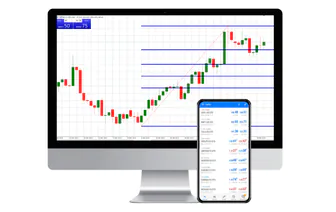
POEMS (iPhone) allows you to access and manage your CFD account conveniently anytime, anywhere on your iPhone. All you need to do is download the iPhone App from the App Store.
Yes, POEMS (iPhone) App is available free on the App Store. However, you have to be an existing POEMS CFD customer in order to use the App.
How do I access my account on POEMS (iPhone)?
After installing the POEMS (iPhone) App from the App Store, you can access the POEMS Mobile platform by tapping on the POEMS (iPhone) icon on your iPhone to enter the login screen. To login to your account, you would need to key in their POEMS account number under User ID and Password before tapping on the Sign In button. Tap on CFD or CFD DMA tab to access the CFD trading home screen.
To enter the Search screen, you would need to first tap on the Trade button at the bottom of the home page. You can then key in the contract name or symbol in the Search Input box at the top of the screen and a list of related results will be listed on the Result list below.
Are the prices quoted on POEMS (iPhone) live?
Yes, prices quoted are live unless otherwise indicated with the * symbol.
How do I place trade for each counter?
After selecting the counter you want to trade, you would be directed to the Trade screen. From the Trade screen, you would be able to select the Order Type and Quantity before selecting Buy or Sell to reach the Order Confirmation screen. After verifying your order, key in your password to submit your order.
How do I know the status of my order?
From the Home screen, you can tap on the Order Status button at the bottom of the screen to view your orders. From the Order Status screen, you can check Today’s Orders or Past Orders of up to 7 days.
You can withdraw orders by tapping on the order you want to withdraw from the Order Status screen. Select the Withdraw button at the bottom to withdraw and you will be prompted to key in your password to confirm the withdrawal of the order.
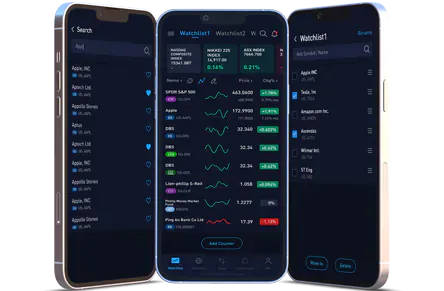
From the Home screen, select Watch List to view all watch lists. To edit watch list, tap on the Edit button at the top of the watch list to rename watch list, search, and add and delete counters on the list. Select Done to return back to your watch list.
How many different watch lists can I create?
You can create up to 5 different watch lists with each watch list containing up to 20 different counters. Each watch list can contain counters across different markets.
Can I view my Portfolio on POEMS (iPhone)?
You can view your current portfolio by tapping on Portfolio at the bottom of the Home screen. The top panel will display your Available Cash and your Equity Balance in SGD. All your Open Positions would be displayed at the centre of the screen. Your Total Unrealized P/L would be displayed at the bottom of the screen.
Can I trade DMA CFD on POEMS (iPhone)?
Yes you can. At the Home screen, select the DMA CFD tab to place DMA CFD orders. Please note that a DMA CFD open position cannot be closed with a CFD order and vice-versa.
Can I trade all CFD contracts on POEMS (iPhone) that are available on POEMS?
POEMS (iPhone) offers the same range of CFD contracts that is found on POEMS except for AMEX market.
Can I place Advanced Orders on POEMS (iPhone)?
Currently POEMS (iPhone) support limit and stop limit orders for Shares CFD and limit order only for DMA. A stop limit order is a combination of two orders, stop and limit order. Once the stop price is triggered, the stop limit order becomes a limit order. Stop limit order allows clients to place orders at worst off price (usually used to cut loss or as a breakout confirmation).
When do CFD orders expire on POEMS (iPhone)?
Like on all other platform, CFD orders expires after market closes.
Can I view the orders submitted on POEMS (iPhone) on POEMS?
Yes, orders submitted on POEMS (iPhone) can be viewed on POEMS and all other CFD platform. However, AMEX orders submitted through other CFD platforms cannot be viewed and accessed via POEMS (iPhone).